About Auto Sync
Basic design of Onefunc
OnefuncPlan is designed to work only on the device you are using.
Since the data is separate, you will need to set up automatic synchronization to always use the latest data on multiple devices.
This page will show you how to do this.
To use synchronization
To use the service on multiple devices, the following two conditions must be met:
★Registered with Onefunc
★A backup exists on the Onefunc server
Registered with Onefunc
If you are not registered, you can register from the menu below.
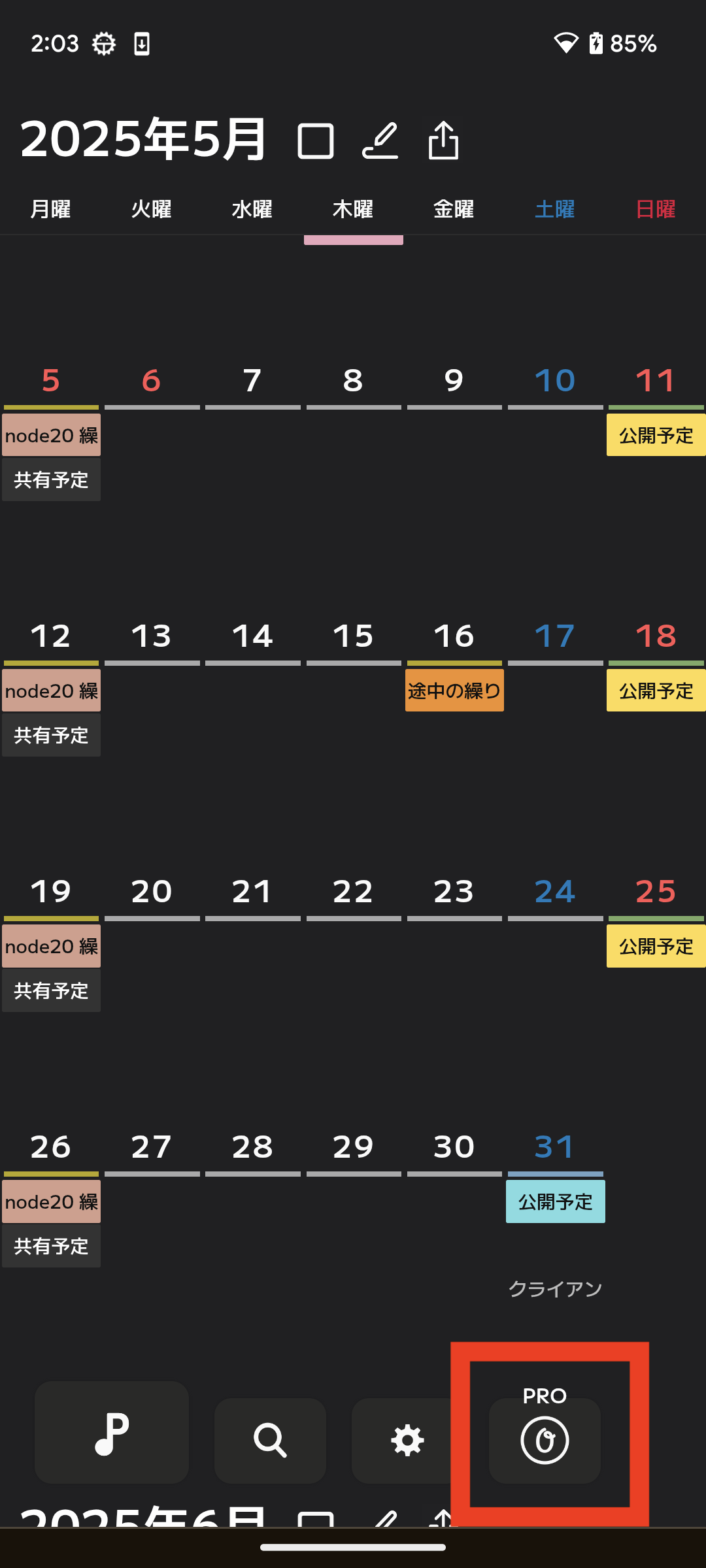
A backup exists on the Onefunc server
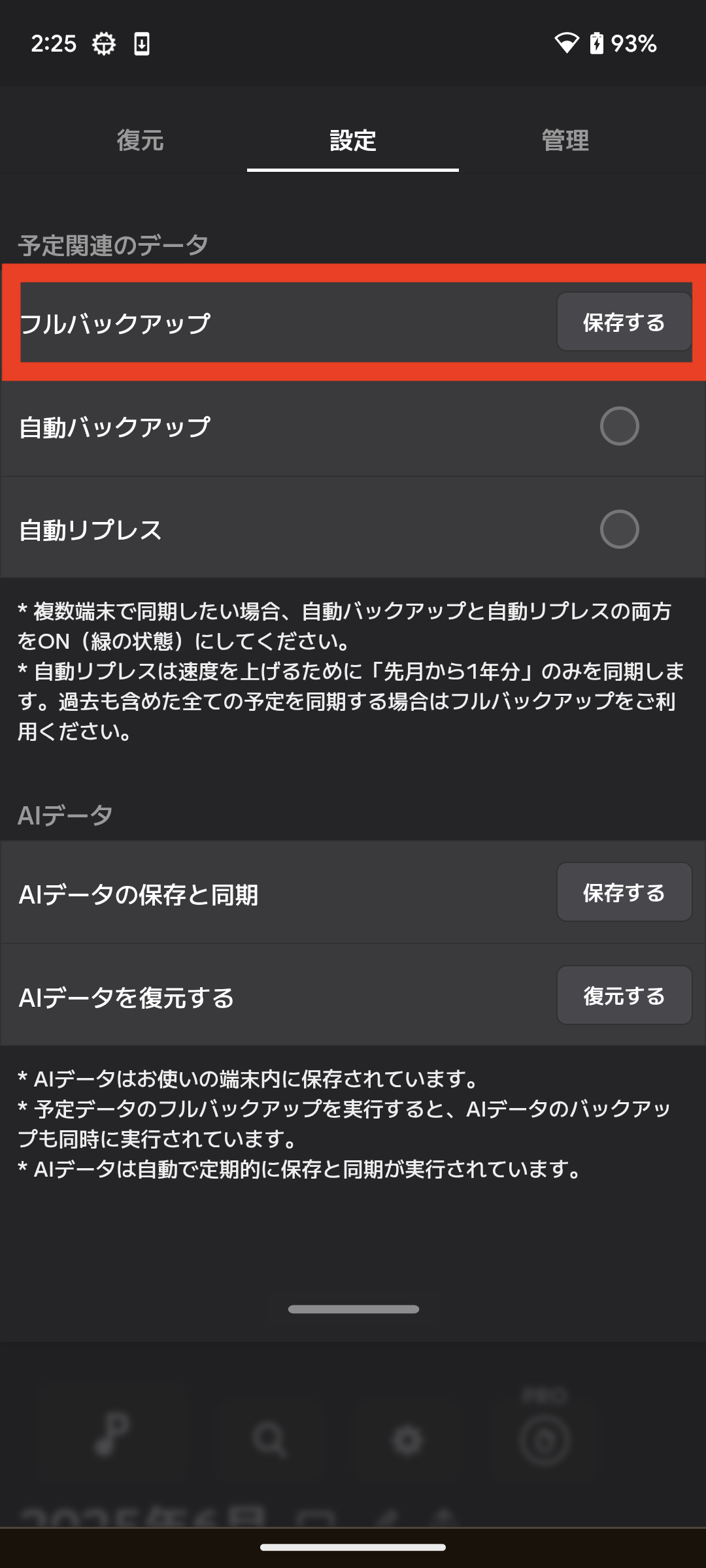
To use your data on other devices, you must back it up to the Onefunc server.
After registering with Onefunc, select the button below. Your current OnefuncPlan data will be backed up.
★For more information on backups, please see the About Backups page.
Set up automatic synchronization
Settings screen
To use OnefuncPlan on multiple devices with automatic synchronization, please set the following.
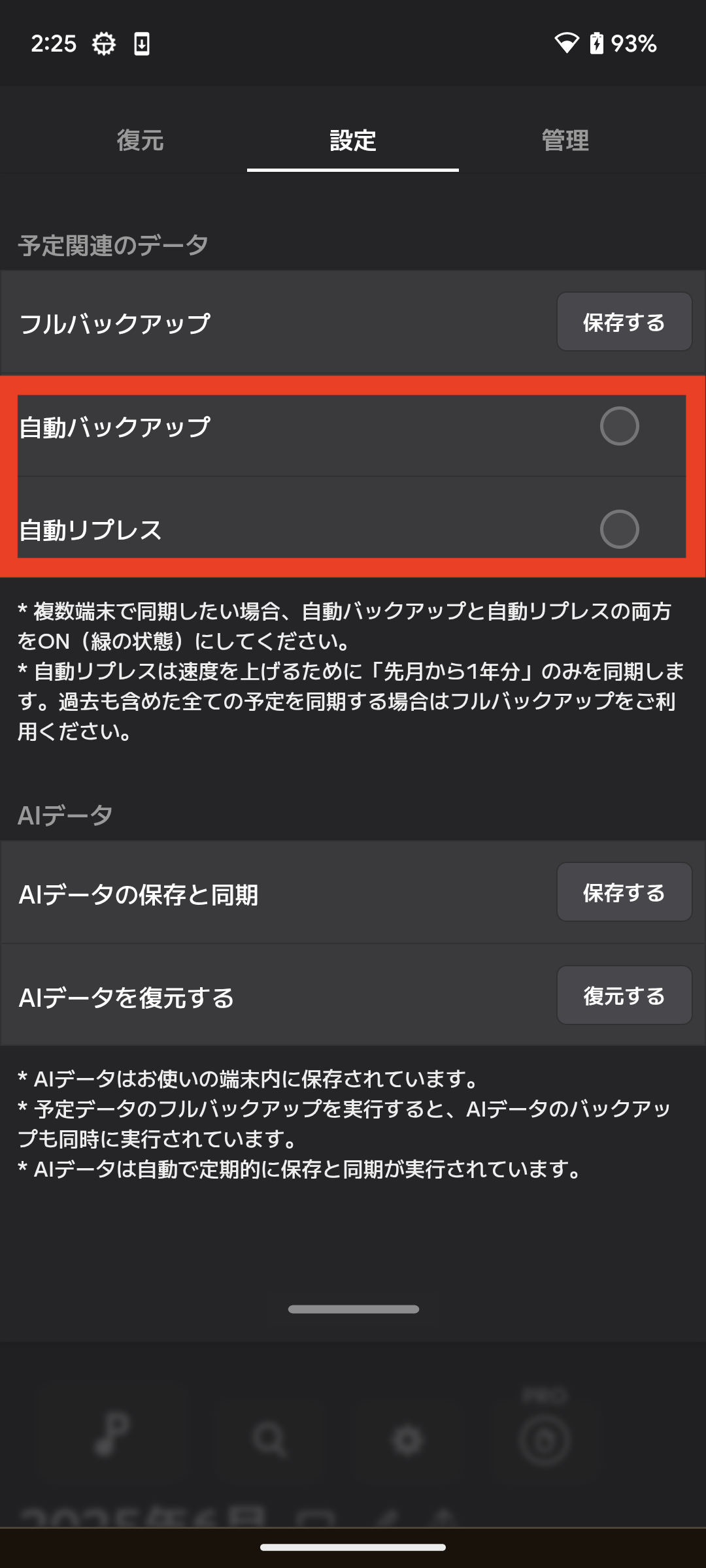
Data is automatically updated at startup
If you set it up as above, data will be automatically synced when OnefuncPlan is launched.
★ When launched, the message "Auto Sync" will be displayed in the top right corner of the app screen.
Important points to note
Settings are required for each device
For example, to use data synchronization between the iOS and Windows versions, settings for both the iOS and Windows versions must be turned on.
What data is synced?
The latest backup will be synced
The data synchronized by automatic synchronization is the latest backup data, which is then compared with the current data on hand.
Compared by update time
By comparing both the "data on your device" and the "data on the Onefunc server", the data with the most recent update time is determined to be the most recent data, and the data is swapped.
For example, if the "data on your device was updated 10 minutes ago" and the "data on the Onefunc server was updated 1 minute ago", the data on your device will be swapped with the "data on the Onefunc server".
About restore (data recovery)
If you want to go back to a specific time instead of syncing
You can also replace the data on your device with data from a specific date.
The following screen shows a list of backups on the Onefunc server.
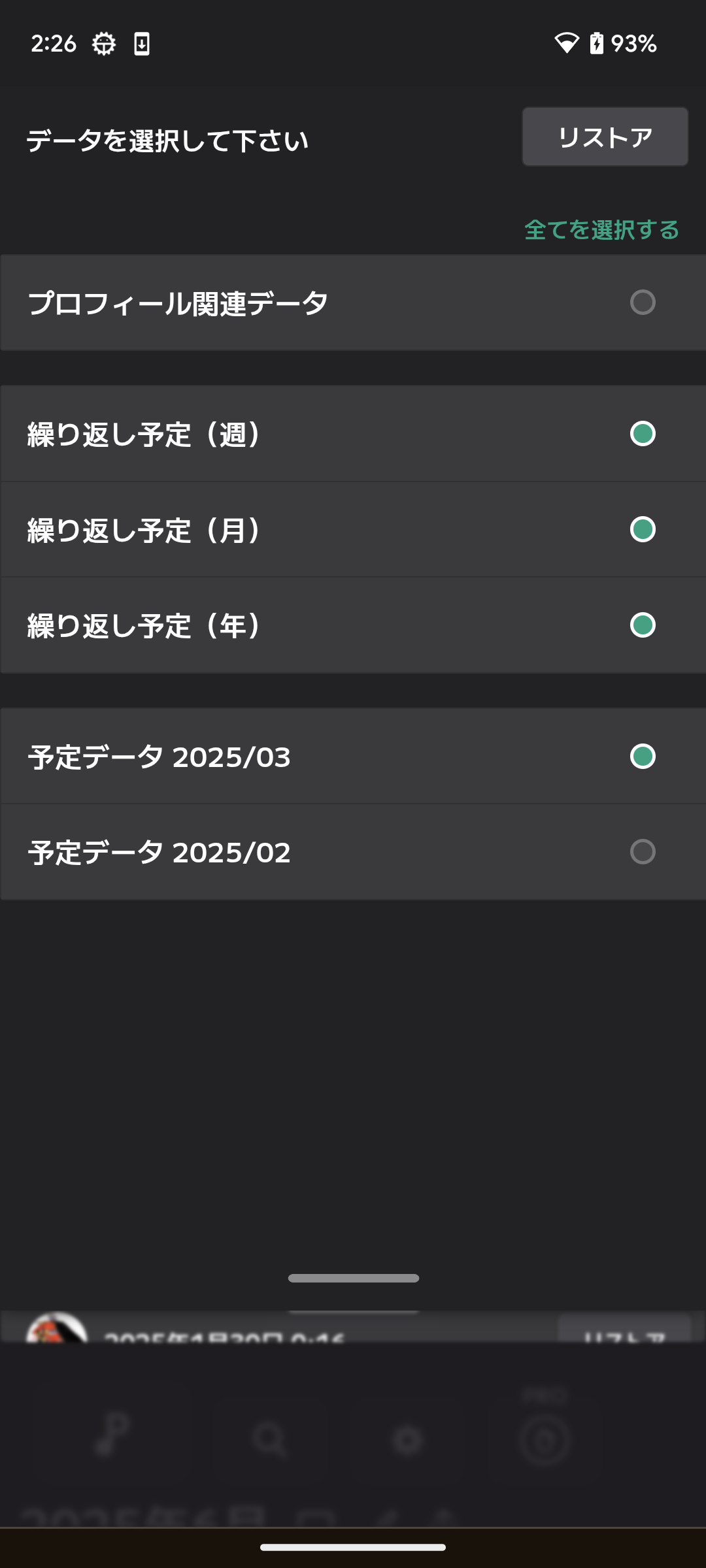
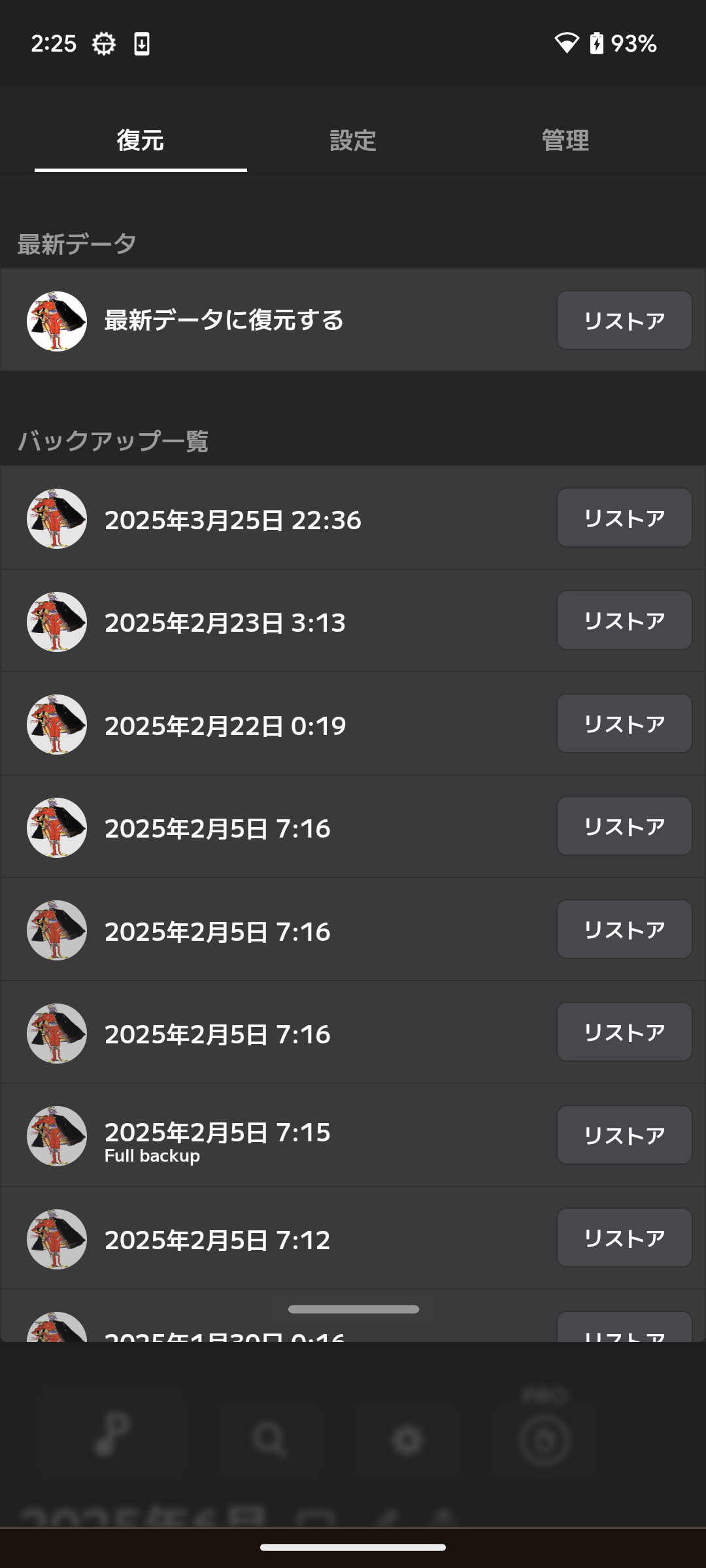 When you select the date you want to go back to, the following screen will appear.
Select the data you want to return to. The data will be replaced.