Wit Meter (Basics)
Benefits of the Status Feature
By objectively understanding how comfortable you are, you can gain self-awareness.
Wit Meter is displayed in five levels.
Status Display
The status function shows a user's "comfort level," "sense of fulfillment," and "busyness," and is displayed on the main screen and calendar screen of OnefuncPlan.
The status is divided into five levels.
It is displayed in gray, light blue, green, yellow, and red, indicating increasing busyness (higher values) from gray to red.
Calculation Method
In real life, moving heavy objects over a long distance requires effort.
"Weight of Object" × "Velocity" = "Required Force (technically, momentum)"
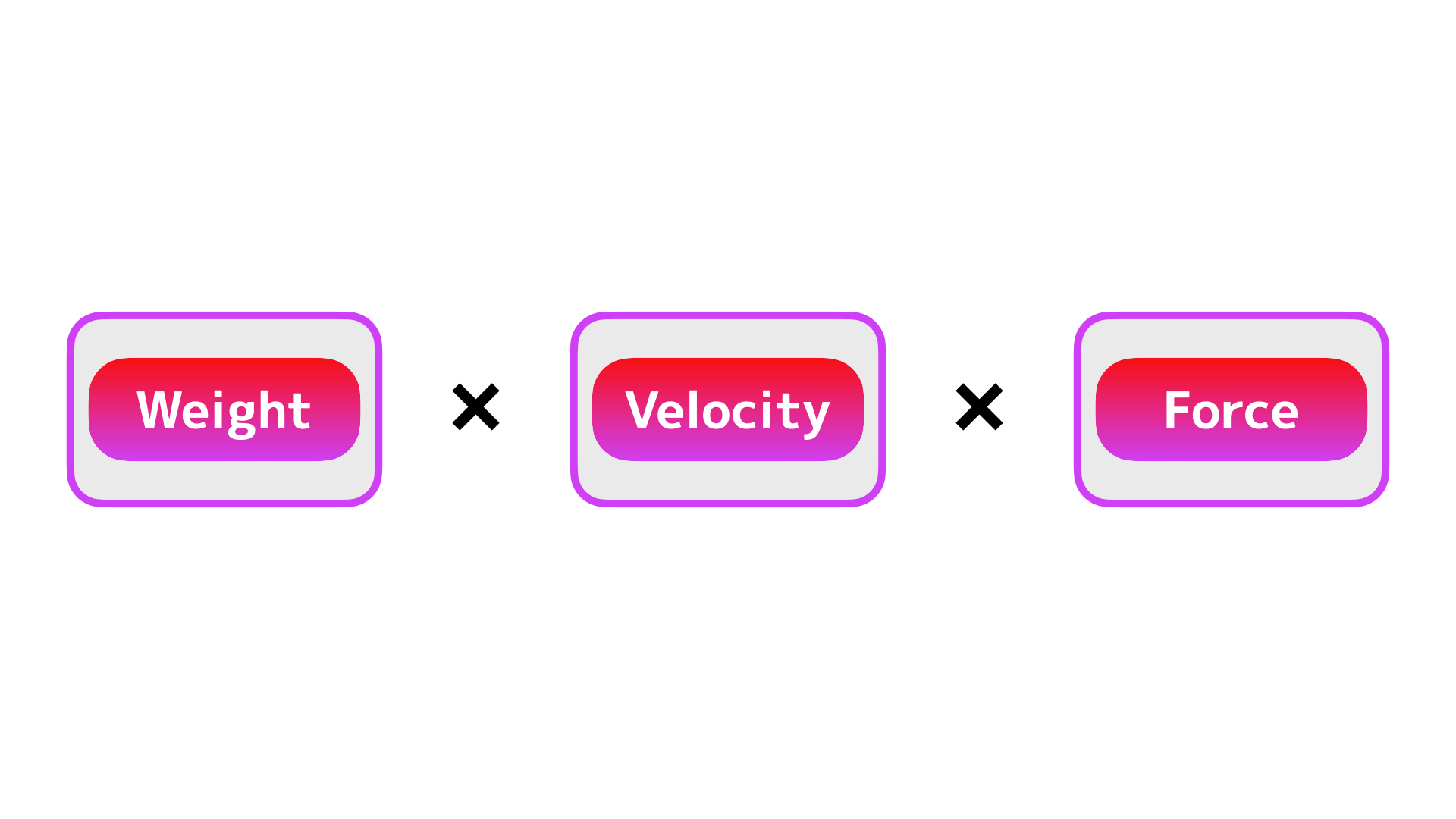
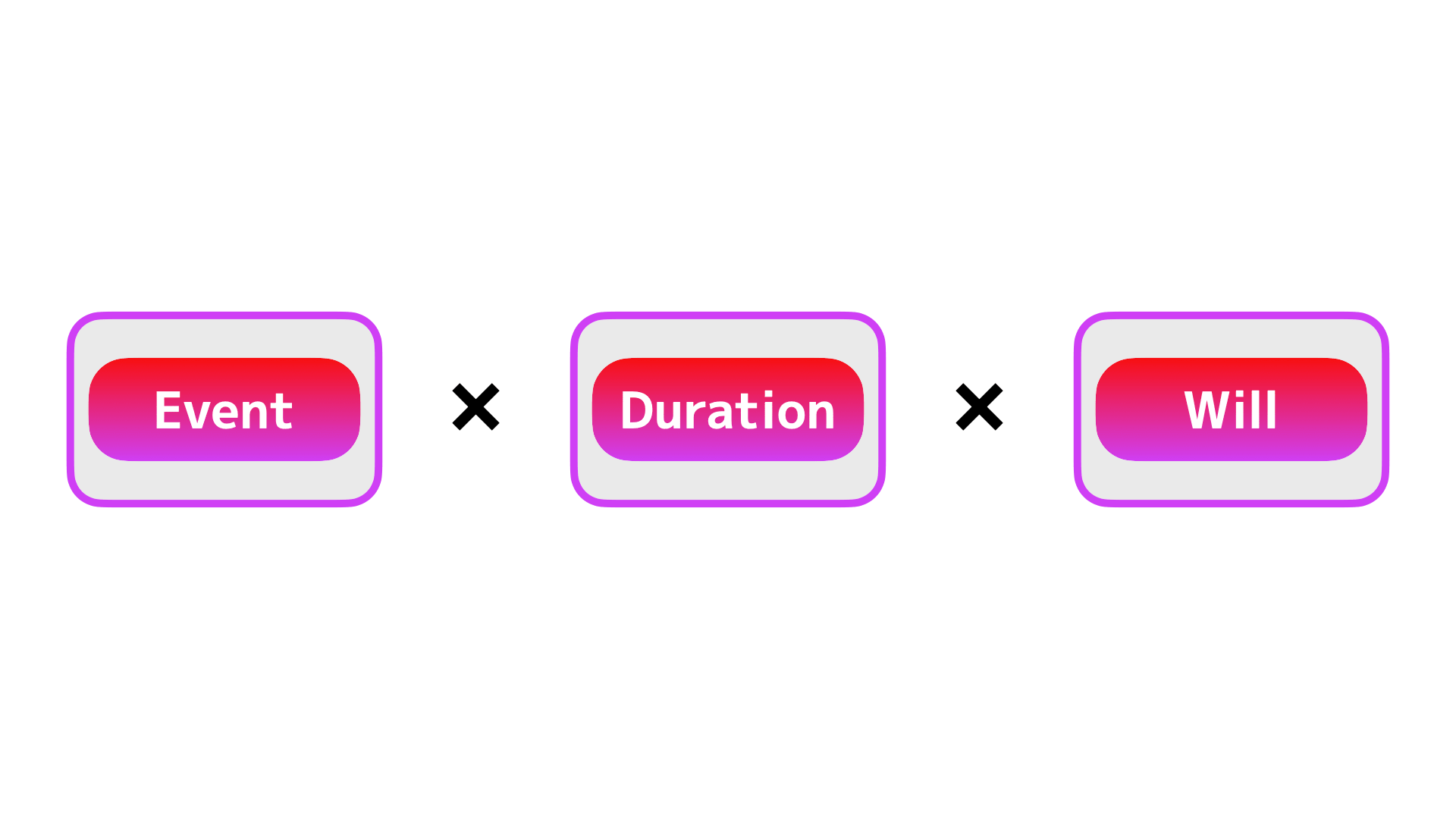
The status calculation is based on the same principle.
"Unusual Event" × "Duration of Schedule" = "Required Will (displayed as Will Momentum in the app)"
Integral Will Momentum
The Integral Will Momentum is the total value obtained by summing the momentum amounts of all scheduled items. Your Wit Meter is determined based on this value.
The criteria for Wit Meter are displayed within the app. The criteria vary depending on the overall state of your schedule.
My Innovation Index
The Innovation Index is calculated as the day's Integral Will Momentum / √(number of scheduled items). It allows you to understand yourself from a different perspective than the Wit Meter.
For example, while the Wit Meter increases when the same Momentum is repeated multiple times, the Innovation Index does not rise for repeated activities. It purely shows how many unique or uncommon activities you engaged in.
Calculated Within the App Only
"Unusual" within the app is purely personal—it depends on the individual user. What is unusual varies from person to person. There is no absolute value assigned to any schedule.
The app counts how many times each schedule is carried out (learning individually for each schedule keyword).
Five-Level Criteria
The median of recent schedules (status from last month and this month) is shown as "green." Other colors are assigned based on specific criteria as well.
If You Don’t Need Status
There is currently no option to hide the status screen. If you do not need it, you can simply ignore it.
Status Colors Are Different from Schedule Colors
The status bar is separate from the "schedule colors." On the main screen, tapping the time "---" allows you to set start times and other details, including a "color" for the schedule. This color represents the schedule itself and is not related to the status. You can set it freely.
Benefits of using it in a business environment
By using it in your company, you can identify and improve issues such as “big-company syndrome.”
This is because if you are only doing the same kind of work as yesterday, it is seen as not taking on anything new, and your status will decrease.
Since employees can check their own status themselves, they can improve in ways that suit them and naturally grow over time.