Remove team members
Removing a Member
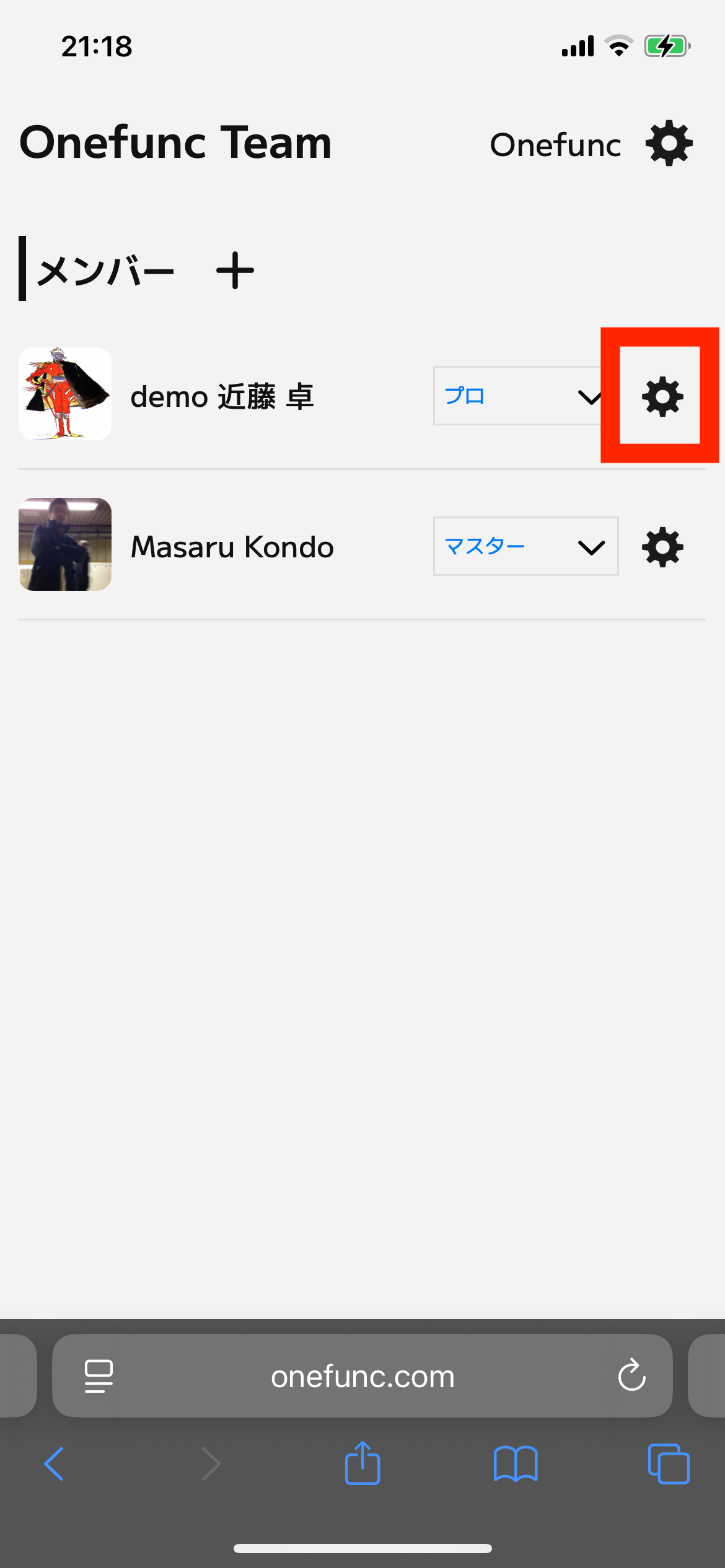
On the member list screen, tap the ⚙️ icon next to the member you want to remove.
A dialog will pop up, and you can follow the steps in the menu to remove the member.
How Member Removal Works
★ If you remove a member, you can always add them back later.
★ If the removed member has already used Onefunc Plan during the current month, their usage will still be counted.
★ If a removed member opens the team participation screen, your team won’t show up in their list of available teams.
★ The member’s device will be updated automatically to reflect their removal. This verification usually completes within a few days.
Important
Even if a member is removed from the team, they may still be part of any shared spaces, which allows them to view or share schedules. Make sure to also check shared space memberships in Onefunc Plan when removing a member from a team.