Add team members
There are three ways to add members:
★ Search for username
★ Add using profile ID
★ Add using invitation code (recommended method)
Add User Window
Press the plus button.
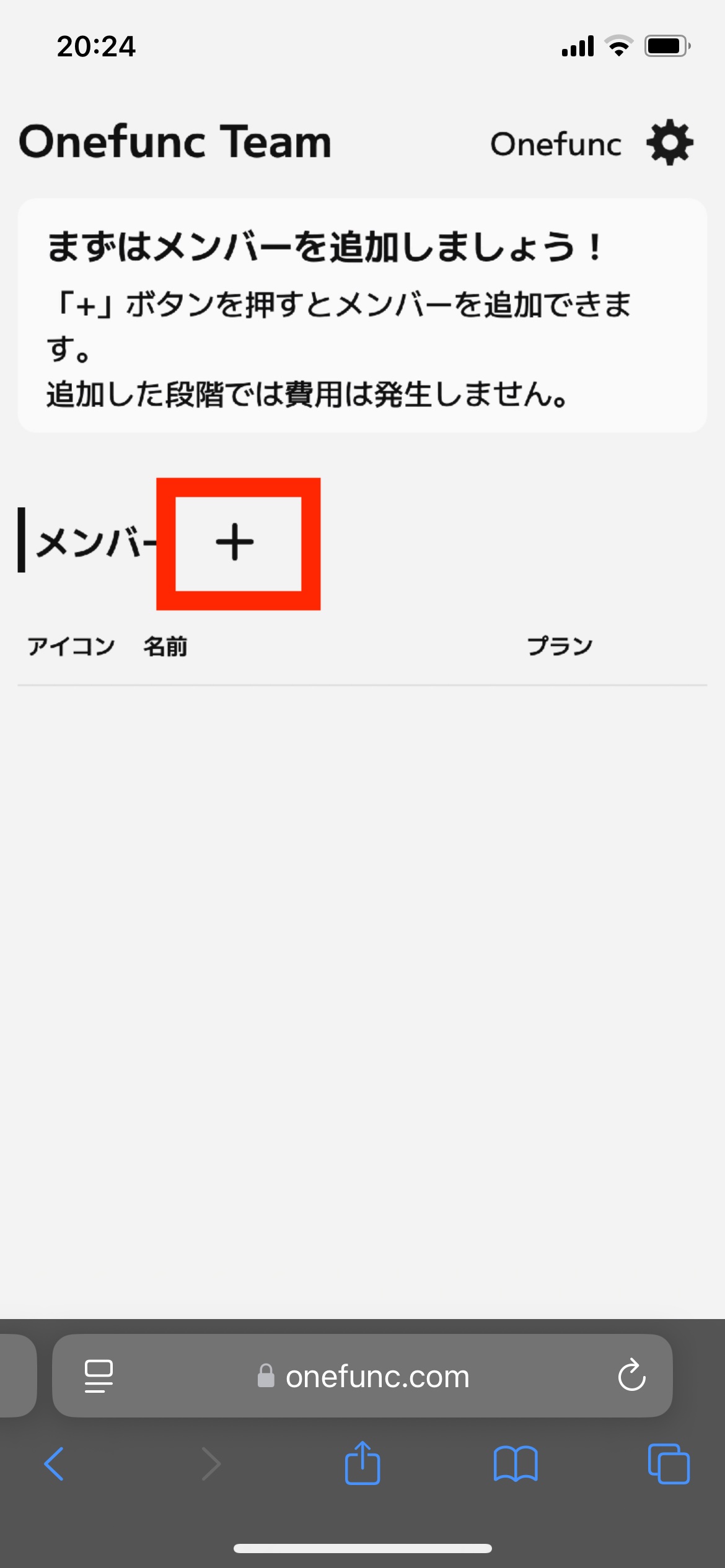
The user addition screen will be displayed.
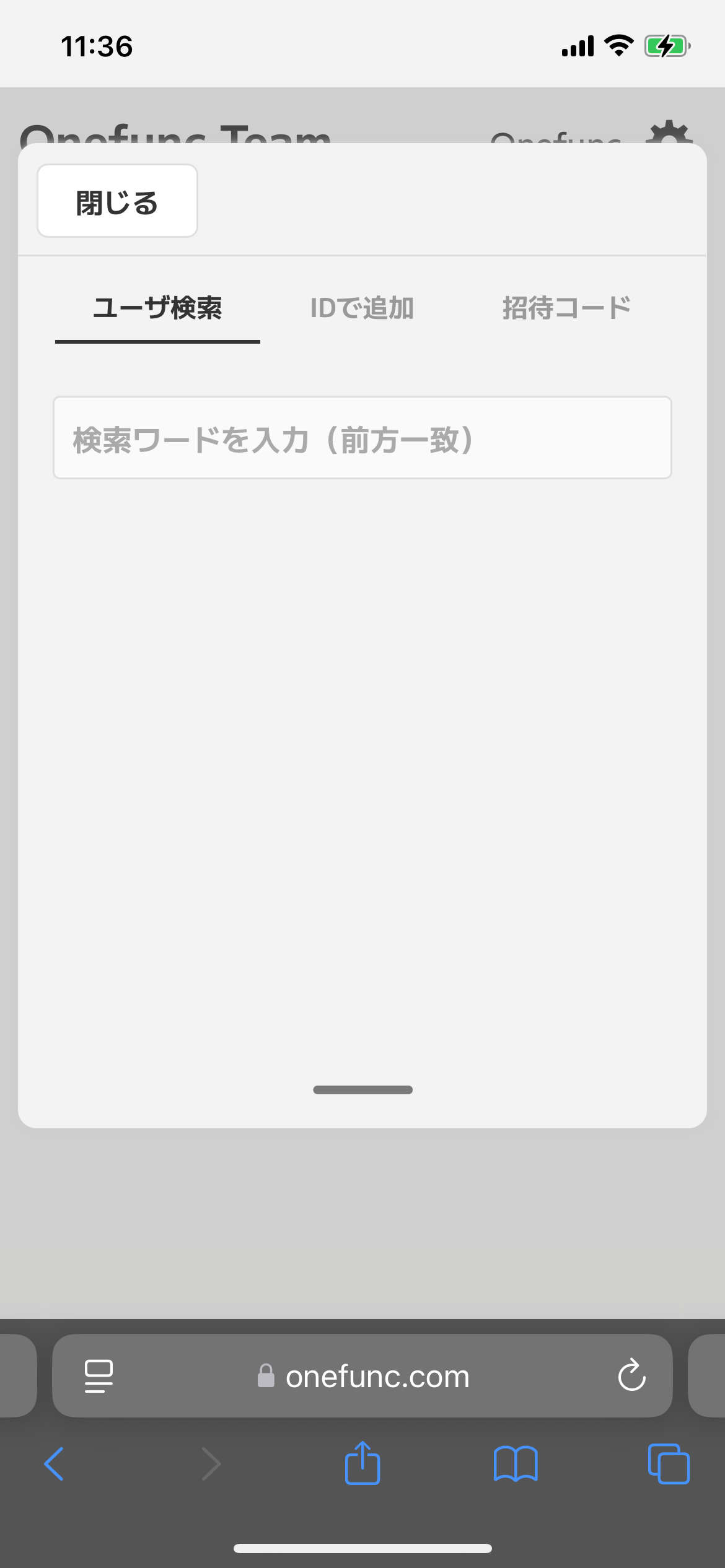
How to add a user
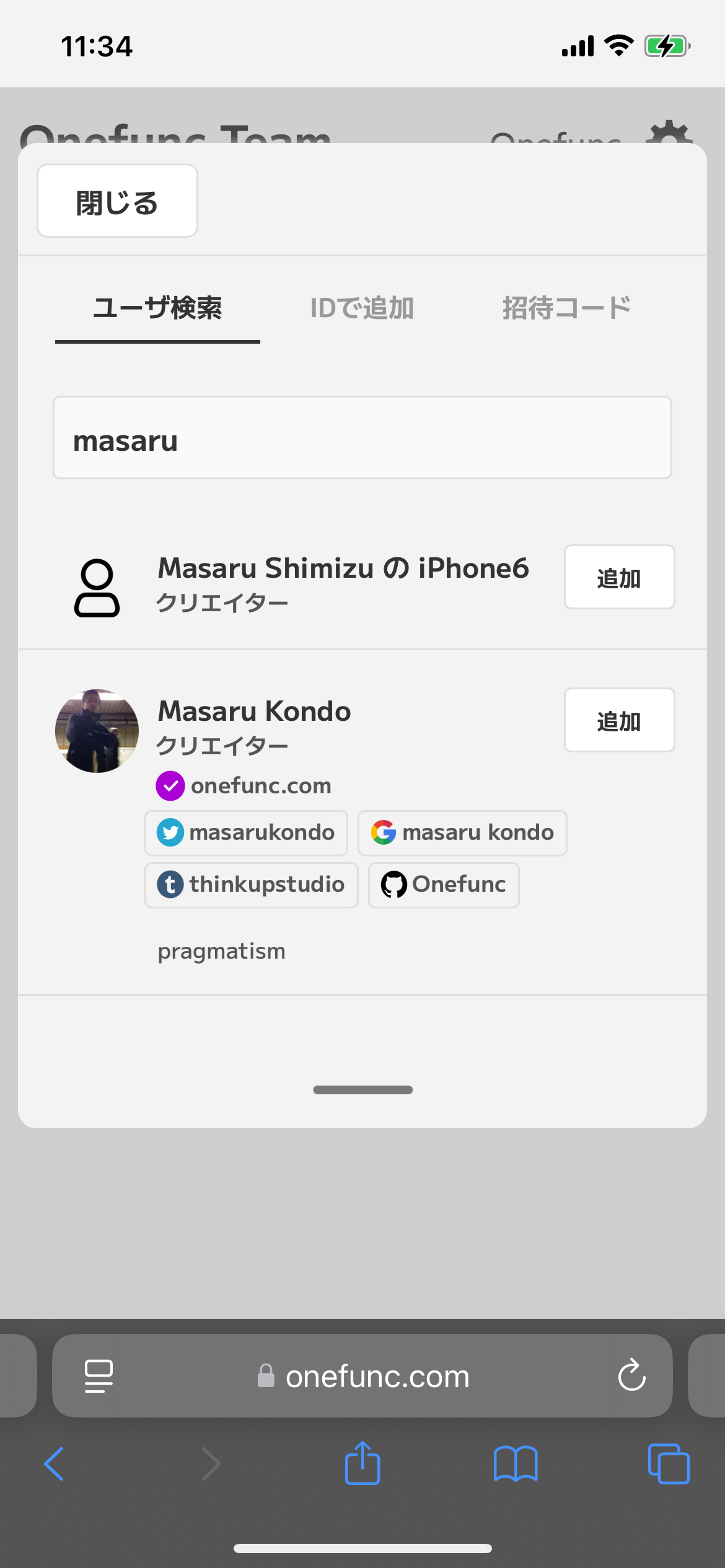
Search and add username
You can search for "Search and add username" by your OnefuncPlan profile name.
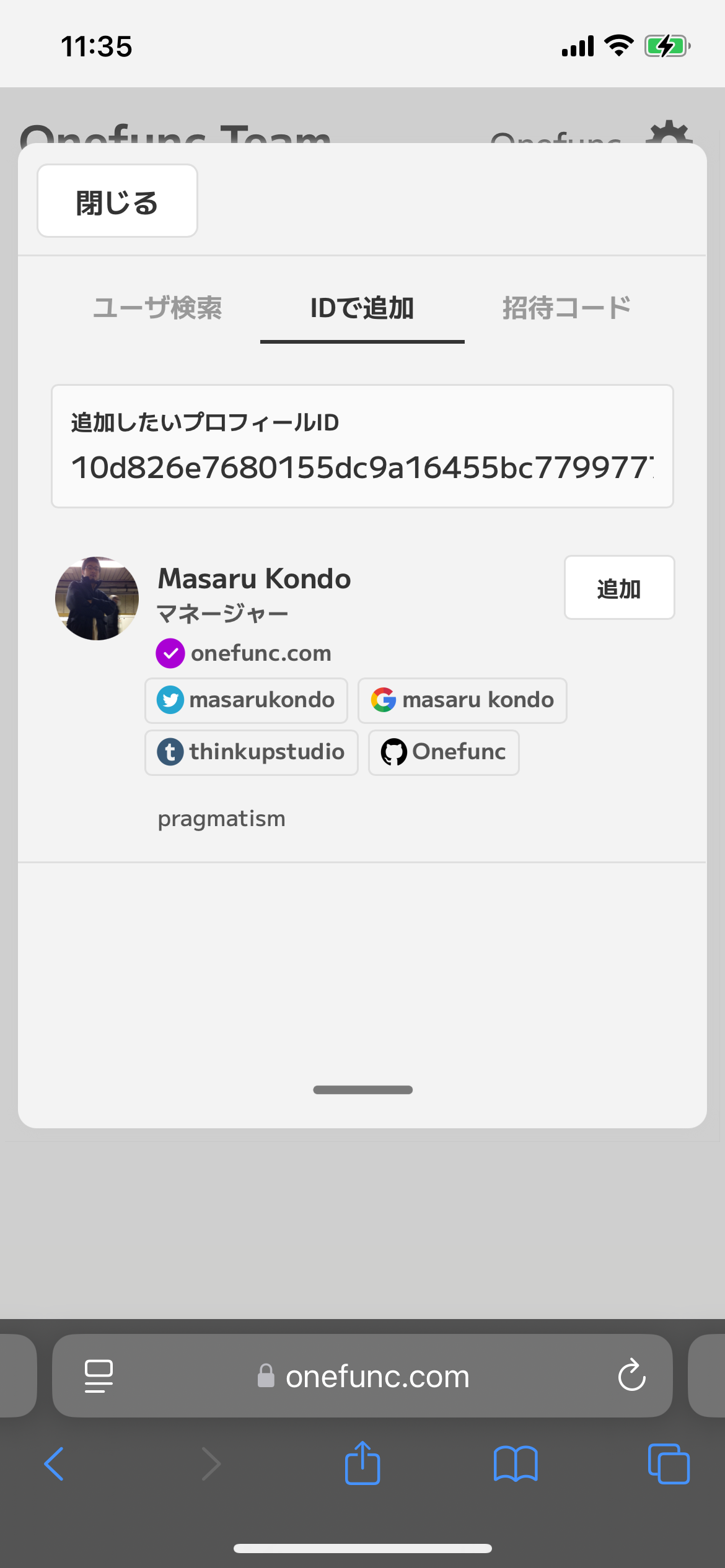
Add by ID
Add by ID is a method to directly enter the profile ID of OnefuncPlan
Add by invitation code
Add by invitation code is a method to inform the person you want to join by the invitation code
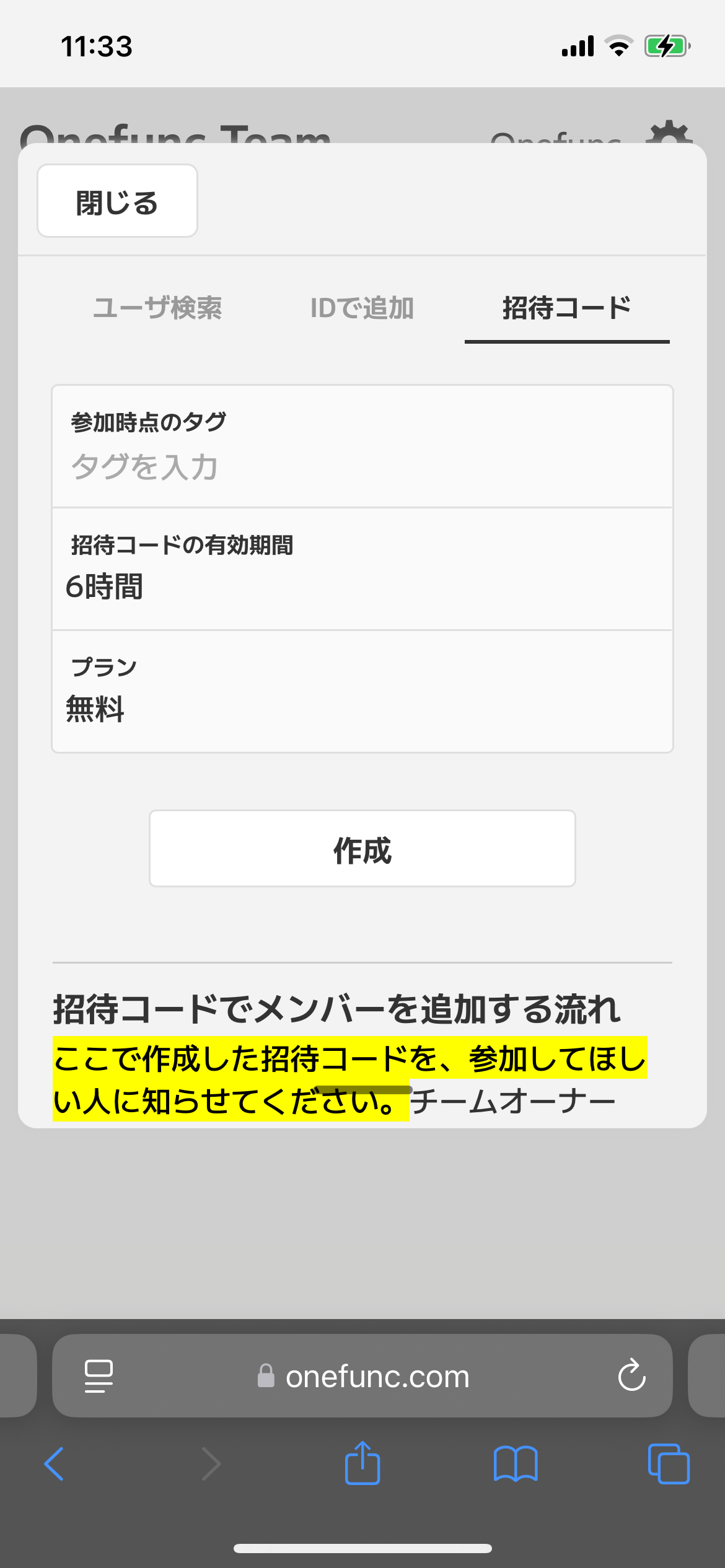
Add by invitation code (recommended method)
Invite team members
The team owner (you) should create an invitation code and share it with people you want to join. You can share it by email or any other method you like.
If you use the invitation code, members will be added automatically.
[1] Create an invitation code (team owner)
Set the "Tag", "Validity Period", and "Member's plan" on the screen below, and select "Create" to create an invitation code.
You can leave "Tag at time of joining" blank.
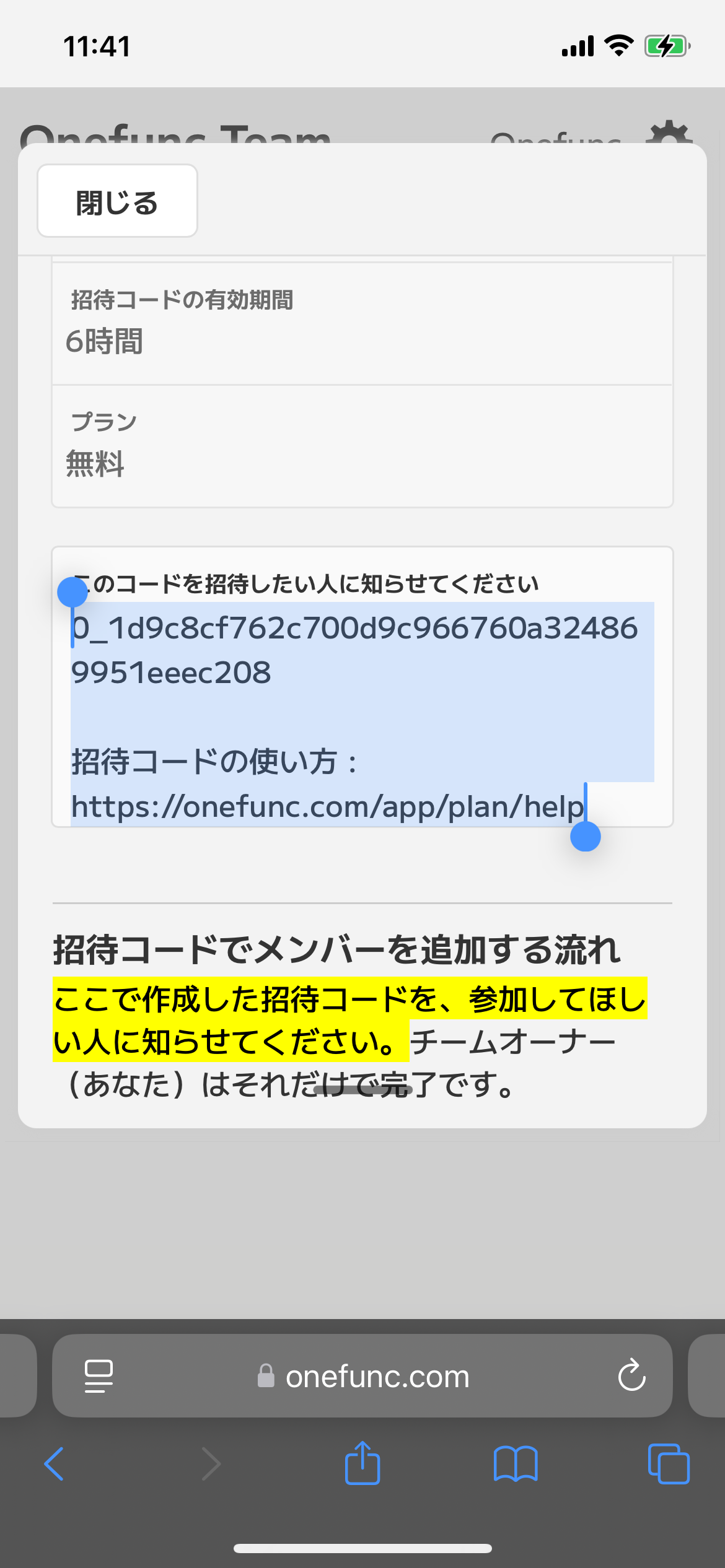
When you select "Create", the following string will be displayed. The entered string is the invitation code for this shared space. Share it with people you want to join.
[2] Using an invitation code (for those joining a team)
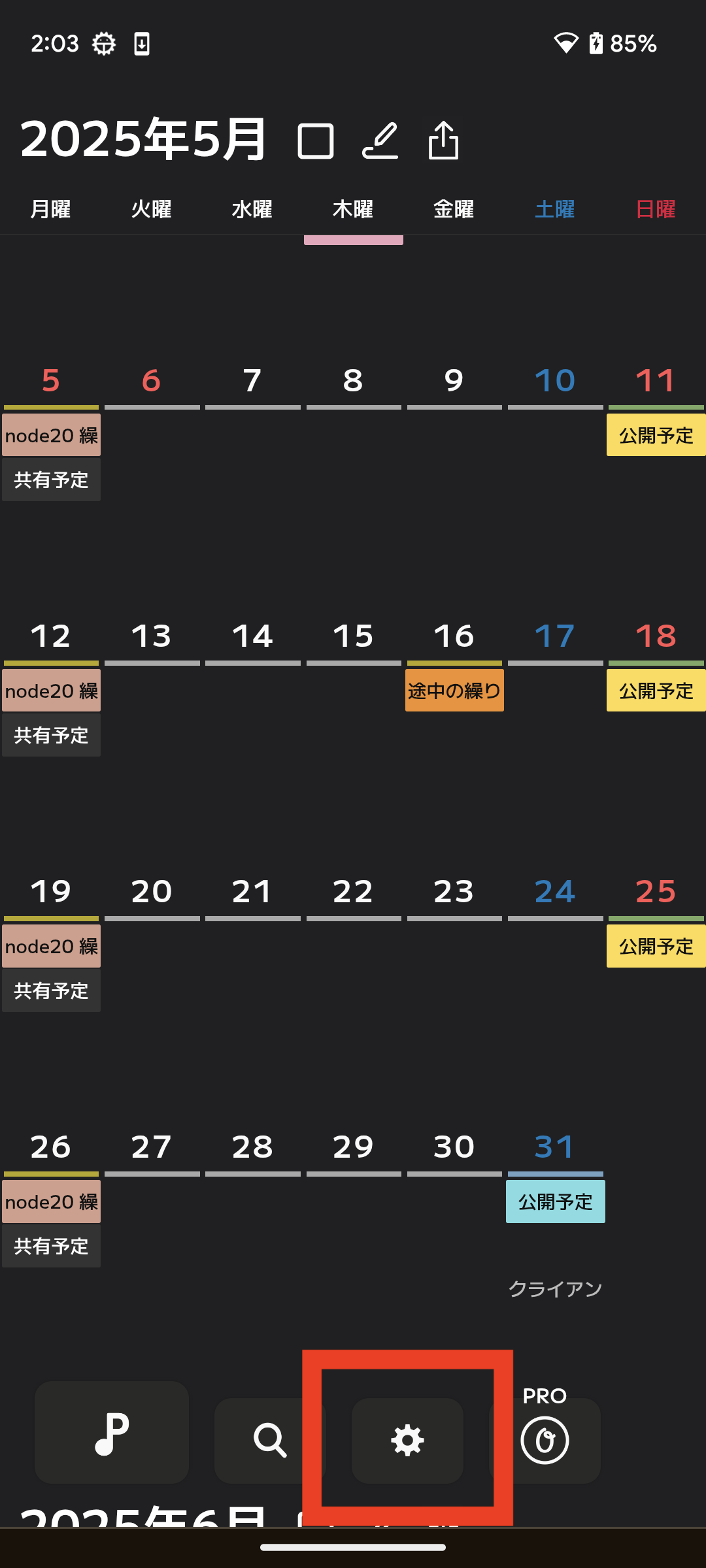
Select the "Gear button" in the bottom menu of the calendar screen, then select the "Team Settings" button.
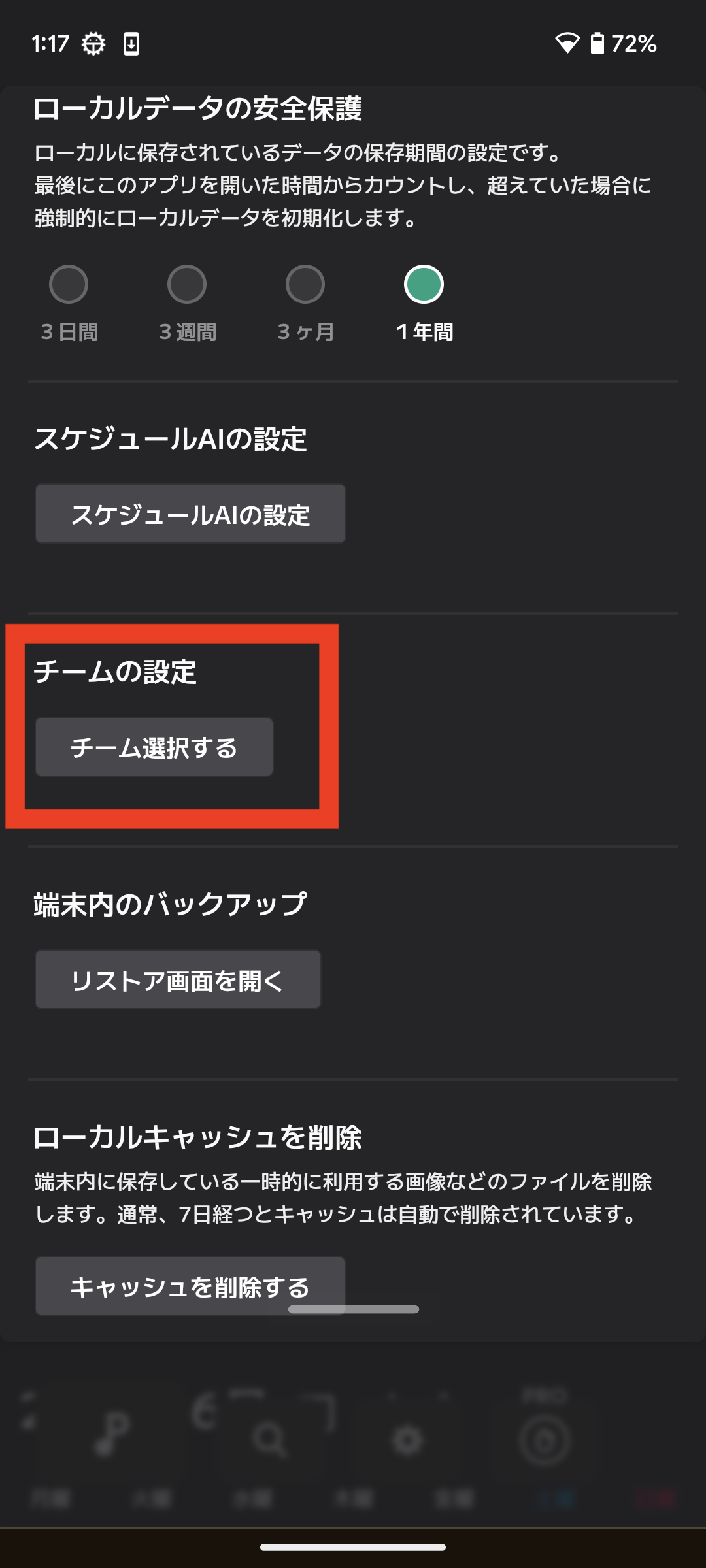
In the "Team Settings" screen, select "Invitation Code" in the top right.
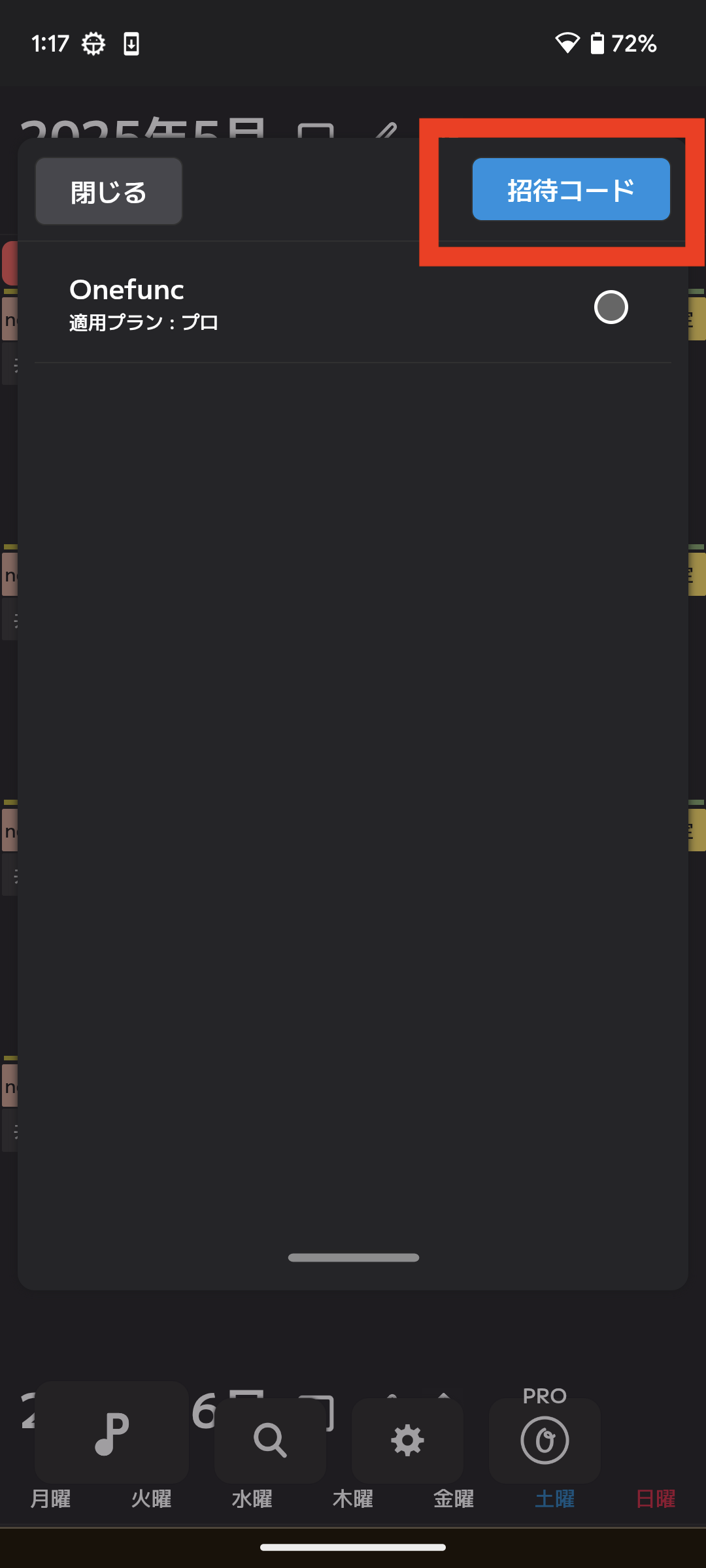
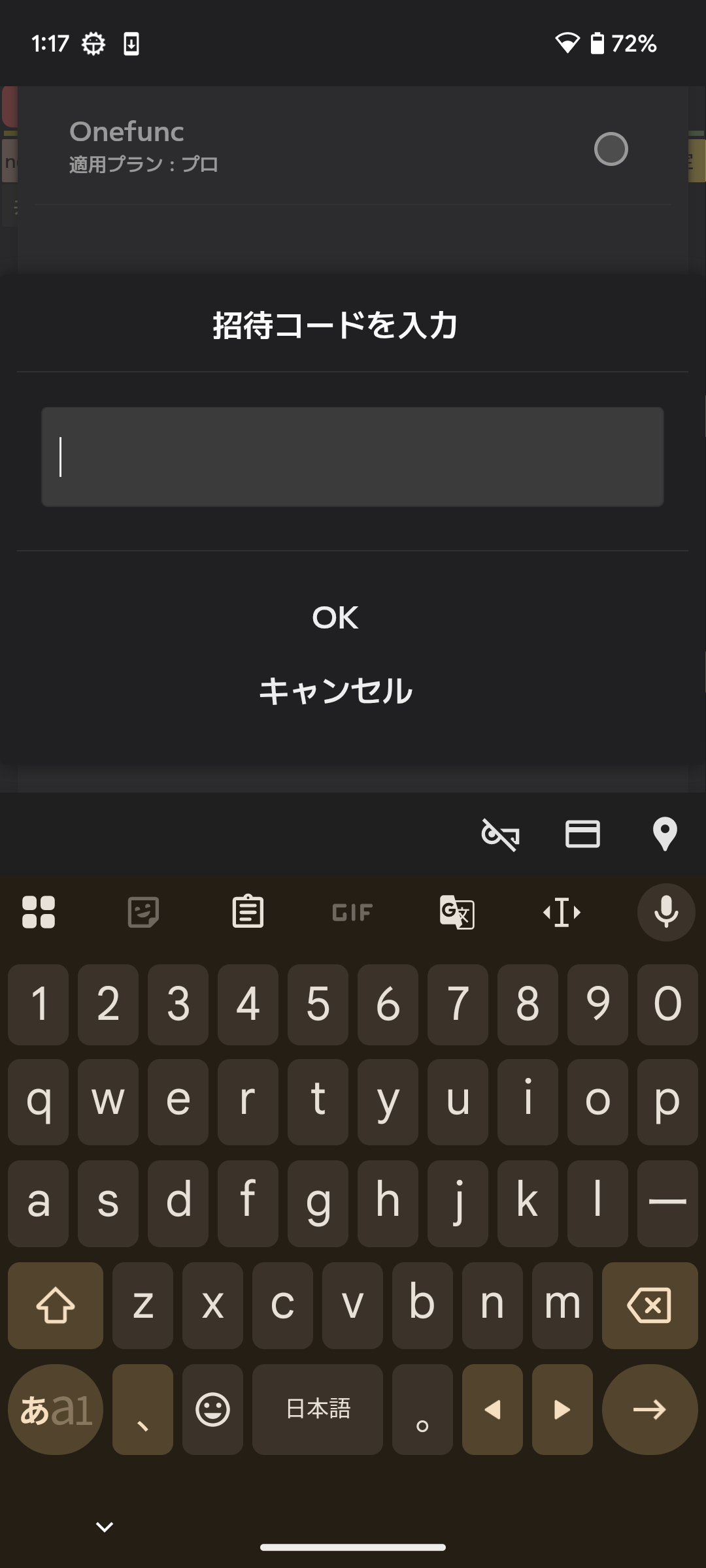
A dialog box for entering the invitation code will appear, so enter the invitation code.
*If an already added member (profile ID) uses an invitation code, they will be re-registered with the plan and tags of that invitation code.